


 Log in with PayPal

Categories


How to Use Coupons on Electronics for Less Canada

There are a few different ways coupons work on EFLC.ca. Some appear directly on the product page, others unlock when you're logged in, and you may have also received a coupon from us by email.
If you can’t find a coupon or something isn’t working, you can always request a coupon and we’ll send one to you if the product qualifies.
Coupons Shown on the Product Page

When a product has an active public coupon, the code is displayed near the price or in a highlighted promo box.
How to redeem:
- Open the product page and look for the displayed coupon code.
- Copy or note the code (exactly as shown).
- Add the item to your cart.
- At the Cart or Checkout page, enter the code in the Coupon Code field.
- Click Apply and confirm the discount appears before payment.
If the code is valid and applies to the items in your cart, the discount will appear immediately.
Tap-to-Apply Coupons

If you see a coupon on the page, you can also tap or click the coupon itself. This will automatically add the product to your cart and apply the coupon for you.
It may take a few seconds for everything to process. Once you’re taken to the cart, you’ll see the discount line applied automatically to your order total.
Login-Only Coupons (No Code Shown on Page)

If you don’t see a coupon displayed on the product page, you may still qualify for a member-only discount.
How these work:
- Log in to your EFLC.ca account. If you don’t have one, create one using your purchase email.
- Return to the product page or refresh it.
- If a member discount exists, a coupon code or member price will automatically appear.
- Add the item to your cart and enter any shown code during checkout, or enjoy the automatic member price already applied.
If nothing appears after logging in, the product is either already at its best price or there is no active coupon for that model.
Where to Enter Coupons
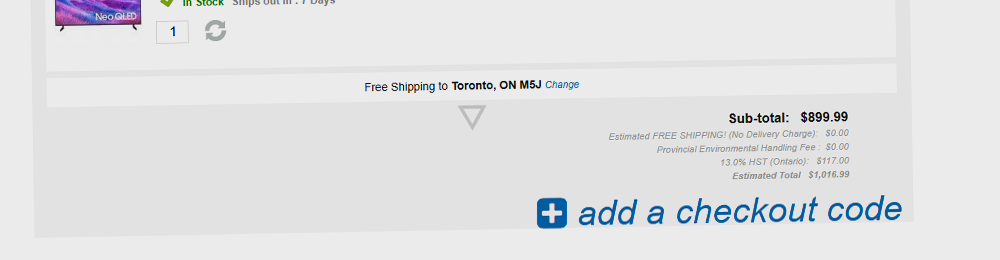
You can enter your coupon code at:
- The Shopping Cart — look for the Coupon Code field below your items.
- Checkout — the same field appears during the first step before payment.
The discount will show as a separate line in your order summary.
Tips & Common Issues
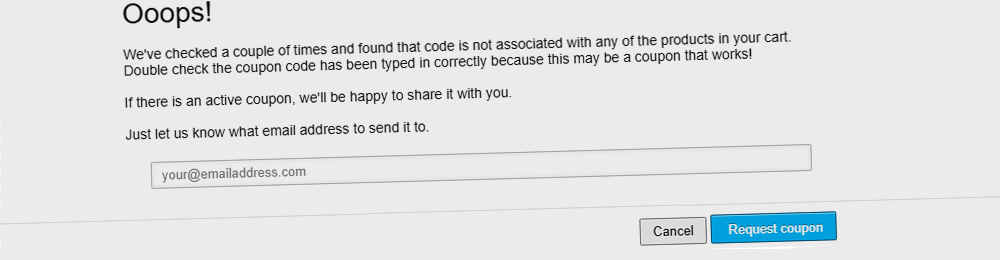
- Orders allow only one coupon code at a time.
- Some brands or items may be excluded from certain promotions.
- Some coupons require a minimum purchase amount.
- Expired coupons will not apply.
- If no coupon appears after logging in, double-check that you're using the correct email.
- You can request a coupon at any time if you think your product may qualify.
Need Help?
If you run into any issues applying a coupon, contact us before completing your order and we’ll review it for you.